Remote Access and Control Options for Tektronix Oscilloscopes
In the ever-evolving landscape of electronic testing and measurement, the ability to remotely access and control oscilloscopes has become a crucial feature for engineers and technicians seeking efficiency and flexibility. Tektronix offers a range of remote access and control options for its oscilloscopes, crucial for remote learning, collaboration across locations, increased productivity in manufacturing, and more. In this blog, we’ll explore the difference between remote access vs remote control and the three methods you can use to remotely access and control your Tektronix oscilloscopes.
Remote Access vs. Remote Control
While the terms “remote access" and “remote control" are sometimes used interchangeably, these are two very different methods of interacting with remote instrumentation. Remote access is the ability of users to access a device or a network from any location. Remote control is the remote operation of a device via signals or commands. In other words, remote access allows a user to interact with an instrument directly from a remote location, as though the instrument were in the room with the user, while remote control allows a user to indirectly interact with an instrument via a command set such as SCPI.
An easy way to think about the difference between remote access and remote control is that all remote access allows remote control, but all remote control does not allow remote access.
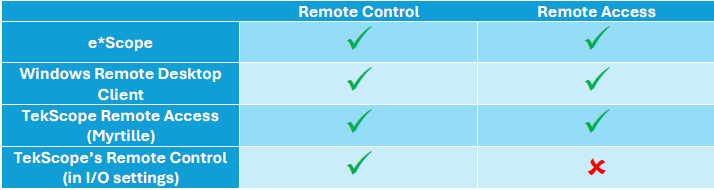 Figure 1: Table outlining which methods allow remote control vs remote access
Remote Access Using e*Scope and TekScope PC
Remote access is like viewing the scope’s screen on your computer, remote control is interacting/sending commands/settings to the scope remotely. Select Tektronix oscilloscopes can be accessed remotely using either e*Scope or TekScope PC software.
What is e*Scope?
Tektronix enables many of its oscilloscopes with a free capability called e*Scope that allows both remote access and remote control of the instrument. This webserver is a built-in feature on 4/5/6 Series MSO scopes and functions as a real-time display and interface via a web browser.
To use the e*Scope feature, simply connect the oscilloscope to a network via LAN. Then, enter the scope’s IP address into a web browser and select the e*Scope instrument control panel from the home screen. An exact replica of the oscilloscope’s screen will appear on the browser. From here, you can interact with your MSO scope as though it were right in front of you, using the keyboard and mouse.
- Open a Web browser on a PC connected to the same network as the instrument.
- Enter instrument IP address on the URL line of the browser and press Enter. For example: 135.62.88.157. The browser searches for and opens the Web page for the instrument.
- Select Remote Scope Control. The browser displays the instrument screen.
- Use a mouse to select and interact with the instrument controls shown in the Web browser. If your remote PC or laptop has a touch screen monitor, you can use the remote touchscreen monitor to access the instrument controls.
On many entry-level and previous generation oscilloscopes, e*Scope is a remote User Interface that allows you to quickly see a snapshot of the oscilloscope display and adjust settings and measurements. Examples of these oscilloscopes include TBS2000B, 3 Series MDO, and 4/5/6 Series MSO (Linux OS only).
What is TekScope PC?
TekScope PC is a PC-based analysis software application that functions both online and offline. With the Starter License , you can connect to a oscilloscope to pull real-time data from the remote scopes. You can access this software and see more details at scope.tekcloud.com.
The TekScope PC interface duplicates the features and user-friendly interface of our new scopes like the 2/4/5/6 Series MSOs. TekScope PC also supports importing popular waveforms file formats from a variety of vendors, including: *.wfm, *.csv, *.bin, *.trc, .*isf, *.tr0, and *.wfmx.
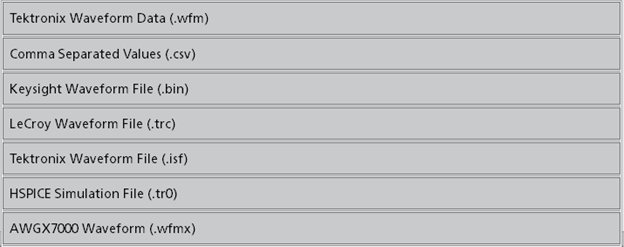
Figure 2: Supported waveform import formats
TekScope PC is also available via a free tier called ‘Basic’ which includes remote connectivity, offline viewing capabilities, plots, cursors, etc. The application-specific analysis features are available as licensed options. For a summary of features and options, please see https://www.tekcloud.com/tekscope/pricing/.
In addition to offline analysis, real-time data acquisition, TekScope PC also offers the ability to access online scopes remotely via the remote access button.
What Does the Remote Access Button Do?
TekScope PC remote access allows you to access your oscilloscope front panel in a manner like a remote desktop connection. In fact, you may use the built-in Windows remote desktop procedure, but we recommend using Myrtille for a more cohesive experience with TekScope PC. Myrtille is an open-source solution alternative to windows Remote Desktop functionality. A supported Myrtille version can be downloaded from TekCloud.com’s prerequisite section, and will need to be installed on your remote windows-based scope.
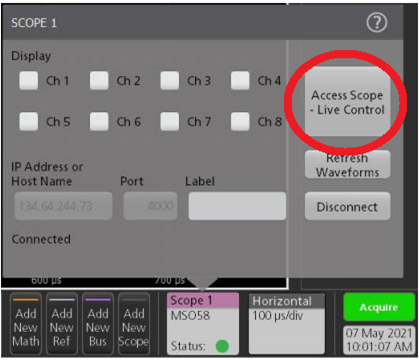
Figure 3: Scope Remote Access Location within TekScope PC
To use TekScope PC remote access, connect to a scope over ethernet. Then, right click on the Scope Tile, select “Configure Scope 1”, and click on “Access Scope – Live Control.” From here, TekScope PC will detect the best remote connection method and you will be prompted to enter your credentials to log into either a Windows remote desktop session or a Myrtille session to access the scope.
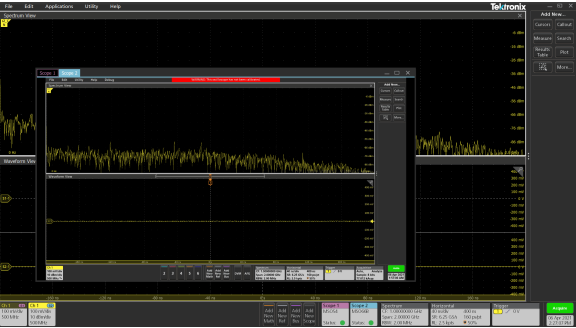
Figure 4: A Remote Access Session Running within TekScope PC using Myrtille
What is Myrtille?
Myrtille is an open source, remote access gateway that provides access to remote servers and desktops via a web gateway. Myrtille can be used by TekScope PC when remotely accessing a scope as an alternative to Windows remote desktop. If you are having issues with your Myrtille installation, check out the troubleshooting guide.
For a Windows 10 instrument, you will need to install the Tektronix Myrtille package on the windows oscilloscope to access the remote scope live.
Follow these steps to download and install Myrtille:
1. Go to tekcloud.com.
2. Click Sign In.
3. Enter your Email and Password to login.
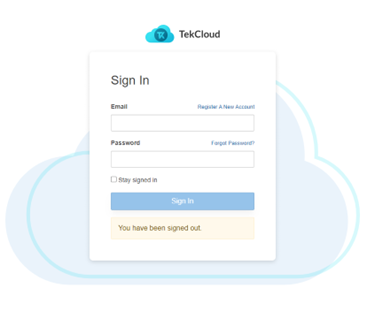
Figure 5: TekCloud Login Page
4. After login, go to scope.tekcloud.com/#/help/prerequisites.
5. Click Install Myrtille to download the ".exe" file.
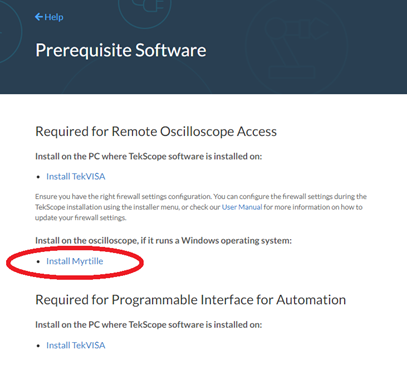
Figure 6: The Myrtille installation download location on tekcloud.com
6. Double click on .exe file to install the Myrtille on the oscilloscope.
7. Once the installation is completed, reboot the oscilloscope to get the Myrtille service running so that you can access and configure the oscilloscope (for full live control).
When to use Myrtille instead of Windows Remote Desktop
While Myrtille and Windows Remote Desktop offer similar functionality, there is a specific use case where Myrtille provides a significantly better user experience.
In remote work scenarios, it's common to access a lab PC remotely typically one connected to instrumentation. Let's walk through an example: a user working from their home office uses their laptop to remotely connect to a lab PC running TekScope PC. If the user then needs to access the connected oscilloscope, they can initiate a second remote session from TekScope PC to the scope.
Here's where issues arise. If this second connection is made using Windows Remote Desktop, it can overtake the original remote session to the lab PC. Once connected to the scope, the user no longer has access to return to the lab PC remote access session.
Now, consider the same scenario, but using Myrtille instead of Windows Remote Desktop to access the scope from the lab PC. Myrtille opens the remote session in a window within the TekScope PC. This approach avoids the problem of one remote session taking over another.
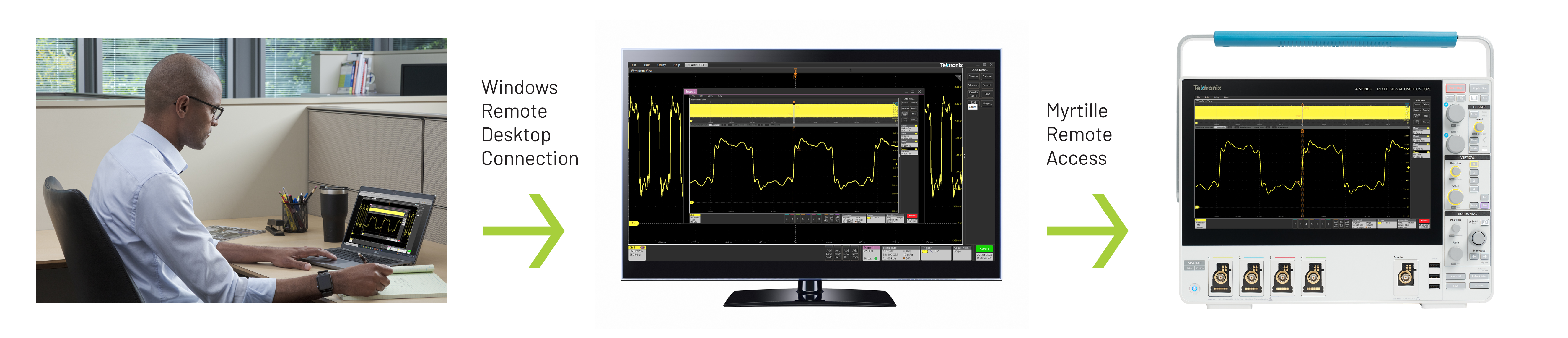
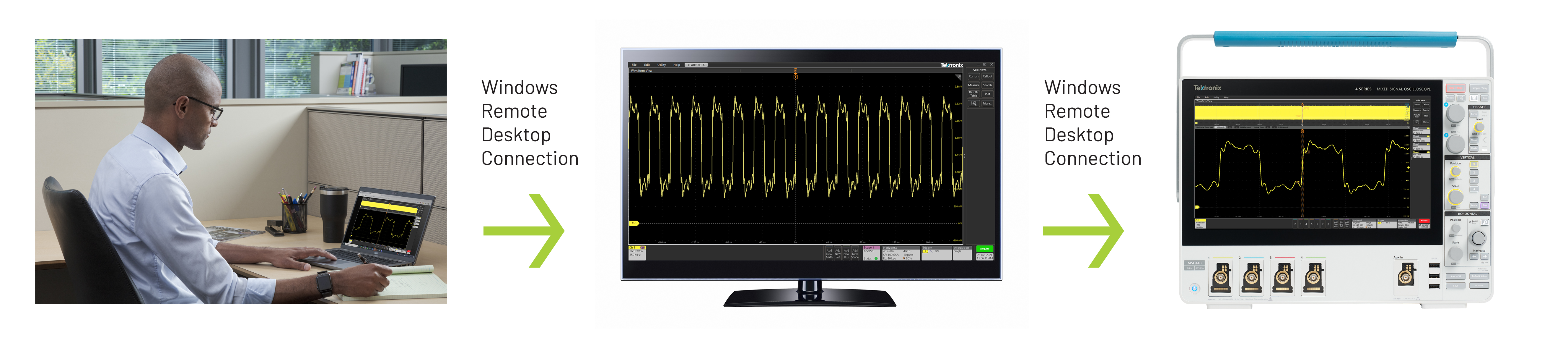
Figure 7: Using Windows Remote Desktop Connection, a single user can remote into TekScope PC which can then be used to remote into an oscilloscope using Myrtille.
Remote Control Using TekScope PC
TekScope PC also offers remote control abilities outside of utilizing remote access. When remote control is on, changes made through the Vertical, Horizontal, and Trigger menus in TekScope PC are propagated across all connected scopes. To activate remote control, open the I/O settings under the Utility menu, then turn the “TekScope Remote Control” toggle On.
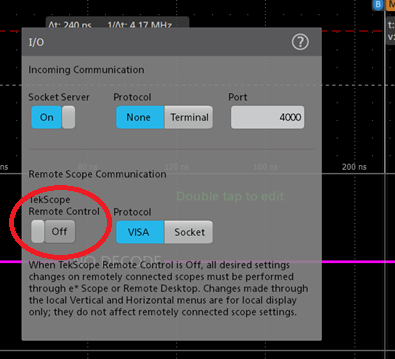
Figure 8: The location of the TekScope Remote Control setting in the IO menu
Conclusion
By leveraging remote access, engineers and technicians can achieve greater control over their measurement processes, facilitate remote troubleshooting, and streamline data management. The following table shows which of the remote access methods outlined in this blog can be used by which Tektronix oscilloscopes. To learn more about e*Scope , and TekScope PC PC visit tek.com.
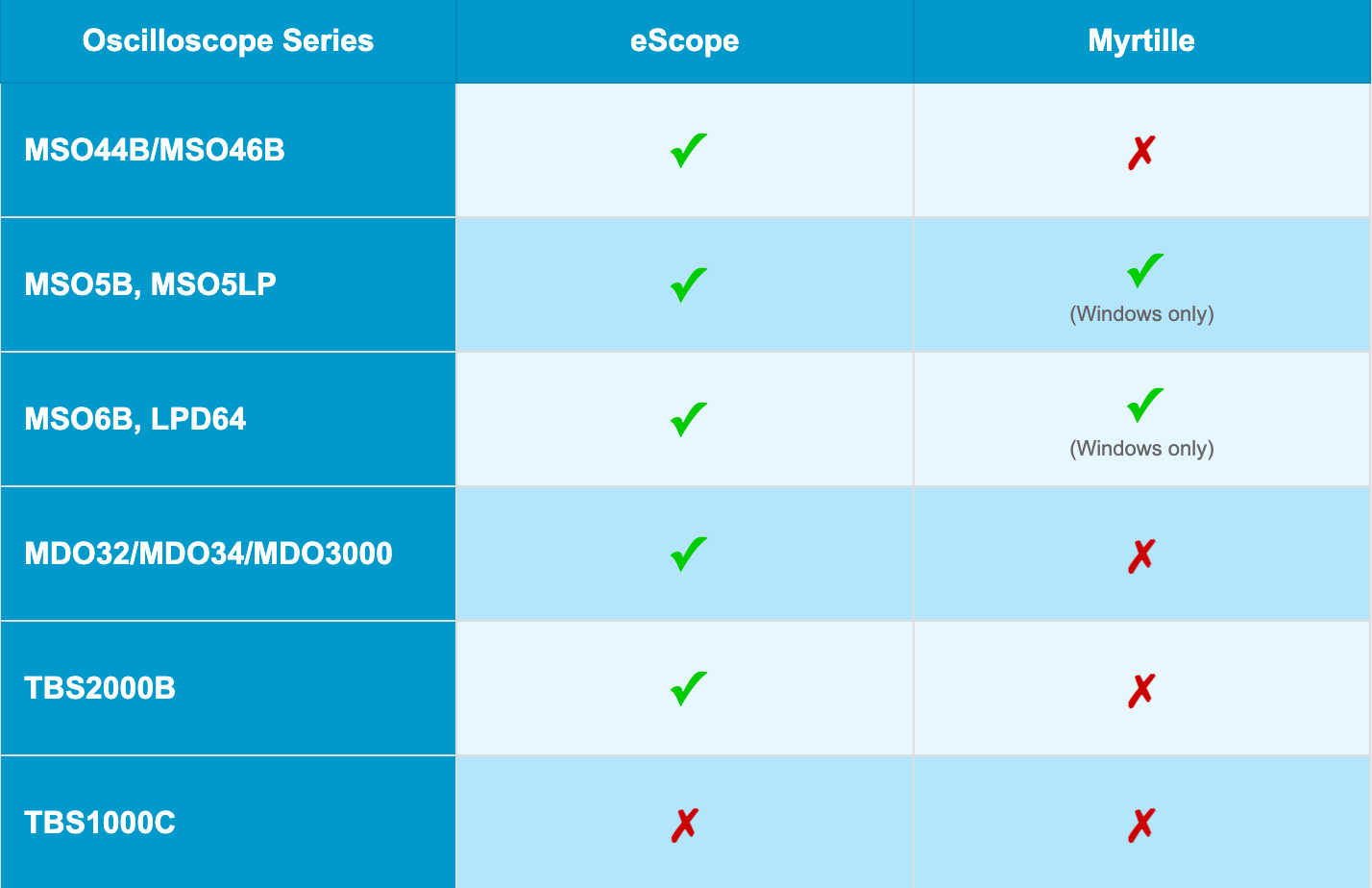
Figure 9: Remote access options for Tektronix Oscilloscopes