Troubleshooting Myrtille
These are tips for connecting to the remote scope using Live Full Control from TekScope PC. All the tips below can be tried on a Win-10 Oscilloscope where Tektronix Myrtille is installed.
Installation
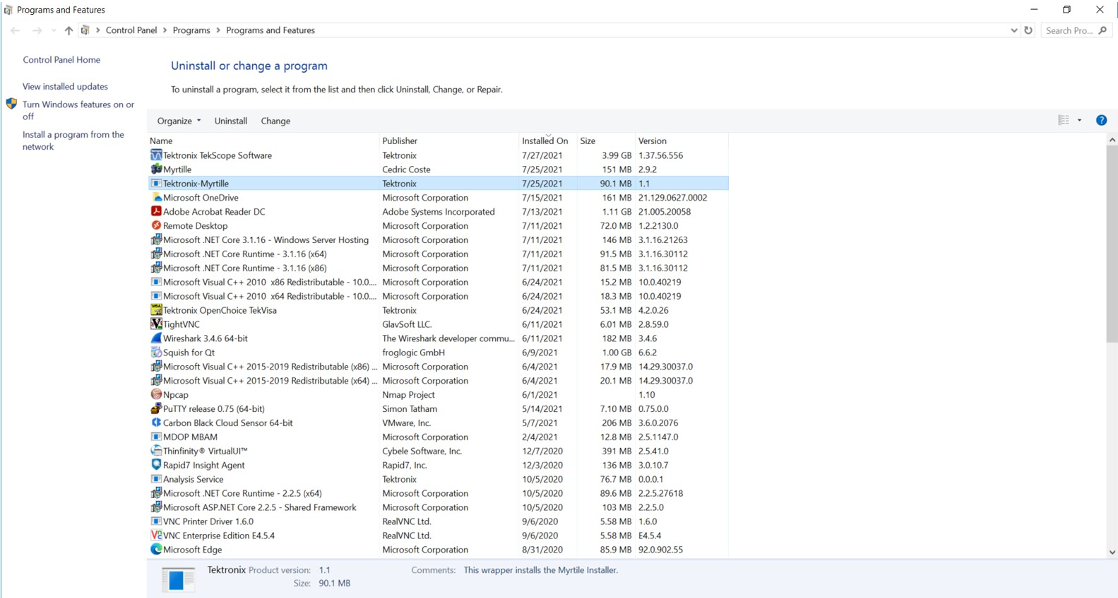
After installation, the control panel should look like this with the Tektronix Myrtille entry.
What is the install log path which the user can send it back to us (just in case if the service is not running)?
- C:\Program Files (x86)\Myrtille\log
Can we get the log files created in this folder (in case the installation goes through and the service also runs as well)?
Tek-Myrtille Service
Is Myrtille Service running?
- if not (was there an issue in the install process); share logs as defined above.
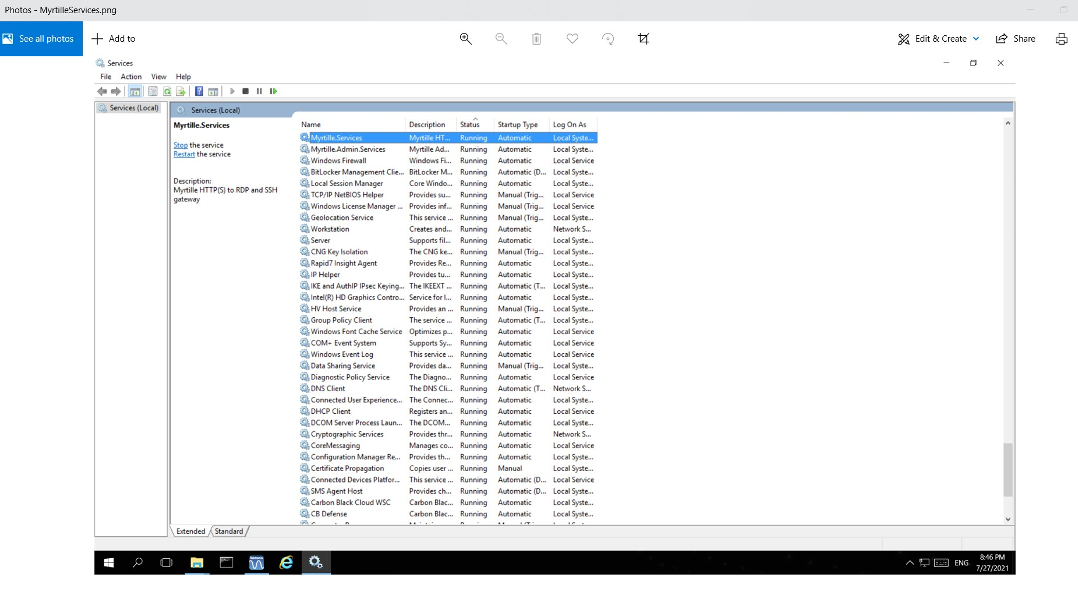
- Ideally service should run (go to Services--> search for Myrtille--> check status --> if not stop-->start Myrtille)
If the service has not auto-started, what are the steps? Do we require to restart the scope after that?
-
- Go to Services->Myrtille.services -> Startup Type should be “Automatic”
ISS/Firewall
Firewall Blocking
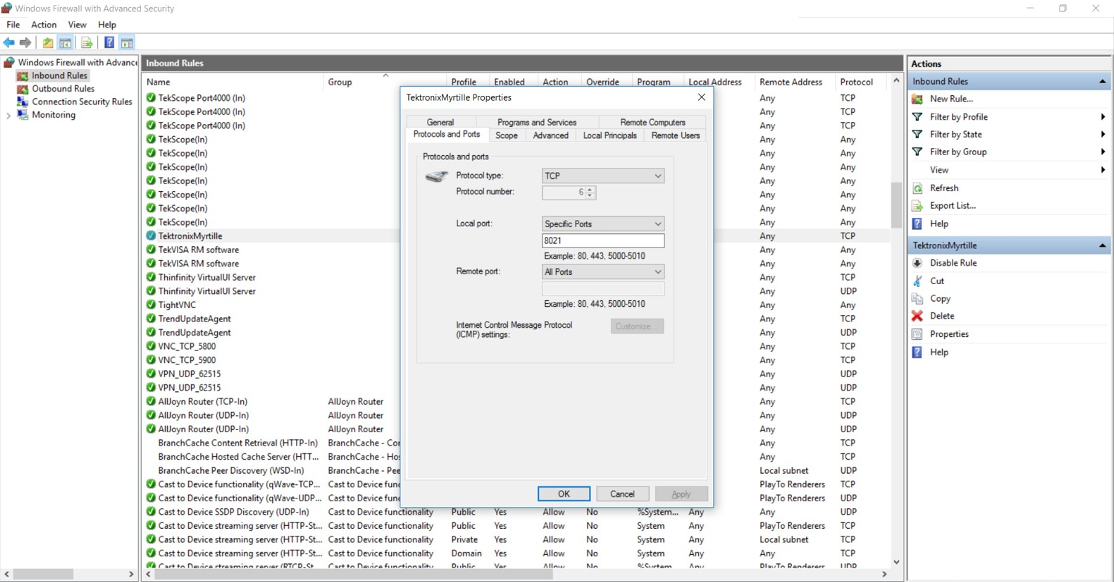
- Verify: Windows defender firewalll advance settings --> In bound rules--> tektronixMyrtille--> Protocols & Ports --> should be 8021
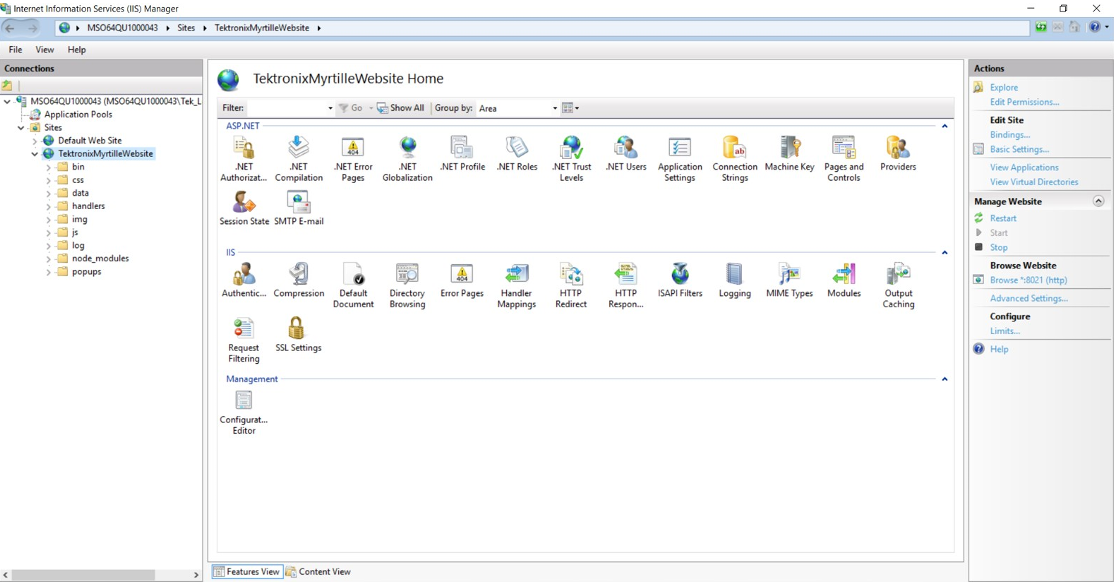
Tektronix Myrtille's website should be created and run on 8021.
Public Networks
Firewall Settings
If the scope is in a public domain (for example if it’s not in office intra-network) then the following public setting in the firewall profile will help to connect to the scope through Myrtille. The steps to do this is:
- taskbar search -> windows firewall with adv security
- Inbound Rules
- type TektronixMyrtille (Name column)
- double click on TektronixMyrtille row
- Go to Advanced tab
- Profiles (specify profiles to which this rule applies) -> set Public as checked -> Press OK
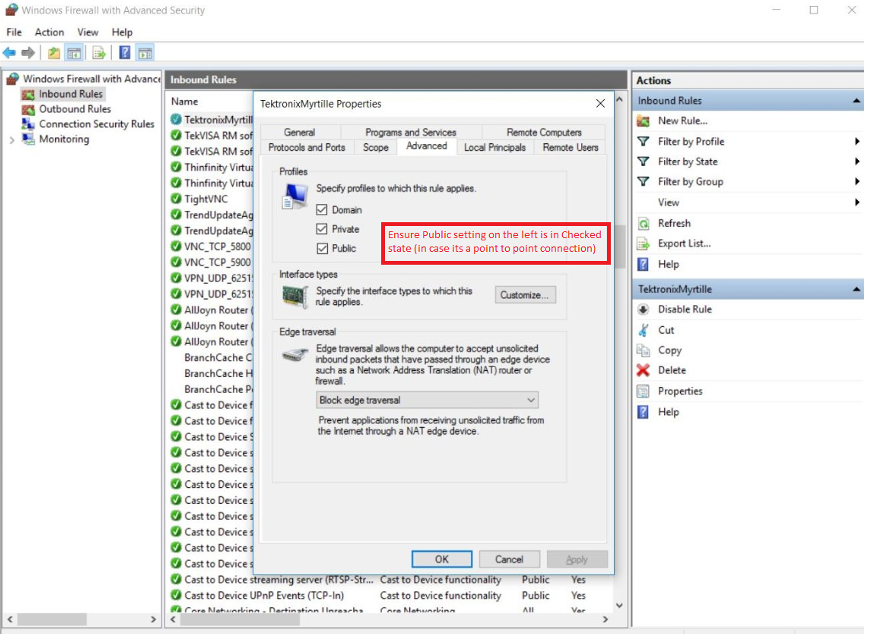
NOTE: Make sure you are an admin to change the inbound rules for the TektronixMyrtille properties.
Also, ensure you have a valid password set on the scope. Empty/blank passwords do not connect to the scope for remote desktop or through the live control.